Search a PDF for a word: Ctrl+F in every viewer, and why it finds nothing on a scan
By the getPDF team · Published 26 October 2026
The short answer
Press Ctrl+F (Cmd+F on a Mac) in whatever shows the PDF: Chrome, Edge, Firefox, Acrobat Reader, Preview. Type the word, Enter for the next hit. In our editor the Find bar counts the hits (“1 of 7”), steps through them and can replace them. If nothing is found, the PDF is almost always a scan with no text in it: try to select a word with the mouse, and if nothing highlights, run OCR PDF on it (a minute, on your device) and search again.
Ctrl+F in every viewer
| Where the PDF is open | Shortcut | Next hit | Notes |
|---|---|---|---|
| Chrome, Edge | Ctrl+F (Cmd+F) | Enter, Shift+Enter back | A count appears at the right of the box; the hits are marked on the scrollbar |
| Firefox | Ctrl+F (Cmd+F) | Enter | Tick Highlight All to see every hit on the page |
| Acrobat Reader | Ctrl+F (Cmd+F) | Enter | Ctrl+Shift+F opens Advanced Search with whole word, match case and a folder option |
| Preview (Mac) | Cmd+F | Enter | The hits are listed in the sidebar by page |
| Our editor | Ctrl+F (Cmd+F) | Enter, Shift+Enter back | A count (“1 of 7”), every hit highlighted, Replace when the file is yours |
| A phone | The magnifier or the three dots, Find in page | Tap the arrows | Chrome on Android, Safari and Files on iPhone all have it |
Search is not case-sensitive by default anywhere; “Weir” finds “weir”. Numbers search like words: 3750 finds “3750” but not “3 750” with a space.
In the editor: every hit listed, and replace
Open the file in the editor and press Ctrl+F. The Find bar sits above the page: type, and the count says how many hits there are in the document, not just on this page. Enter jumps to the next, and the current hit is outlined on the page; the others are highlighted. Escape closes it.
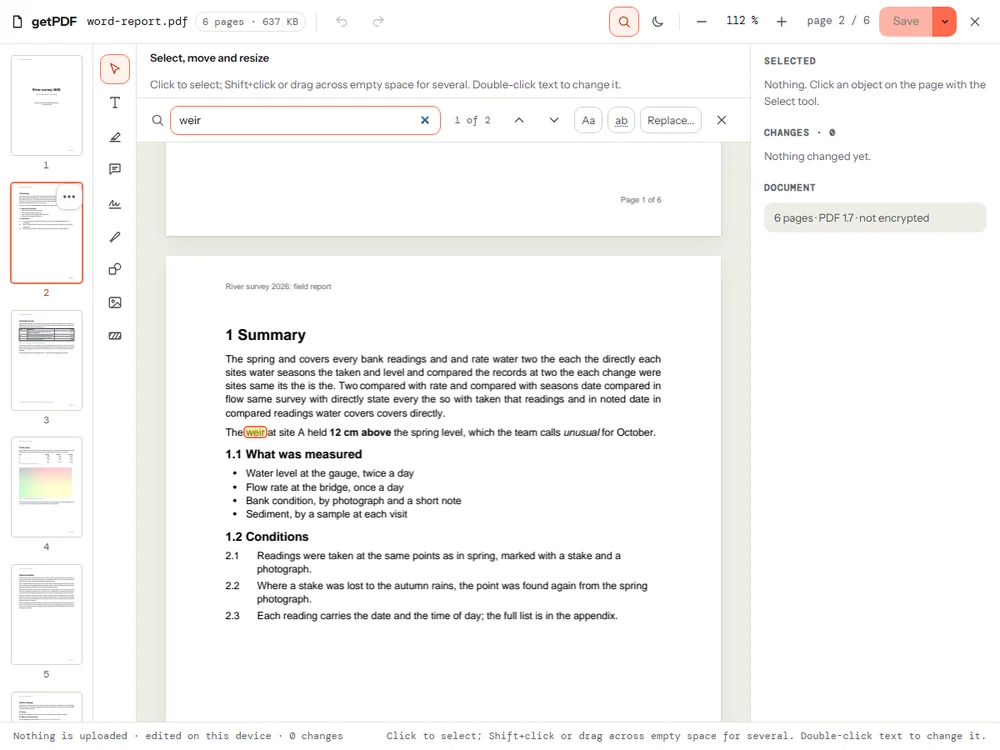
When the file is yours and a word must change, open Replace in the same bar, type the new word and click Replace for this hit or Replace all. The text is re-set in the page’s font and position; find and replace in a PDF covers the cases that need care (a name that is also a month, text that gets longer).
Nothing found: the 3 causes
1. A scan. The page is a picture. Try to select a word with the mouse: if the cursor stays an arrow and nothing highlights, there is no text to search. This is 9 cases in 10. The fix is OCR, below.
2. The text is there but mapped wrongly. The viewer highlights the word when you select it, but a search for it fails, or copying it gives gibberish. The PDF’s font maps its letters to the wrong codes, which happens with some old generators and some protected files. Copying gives gibberish explains it; OCR fixes it too, because OCR reads the picture of the page, not the broken text.
3. The word is drawn, not typed. A logo, a stamp, a heading converted to outlines by a designer: shapes, not text. OCR reads these as well, if they are legible.
A scan: make it searchable in a minute
OCR PDF reads the pages and adds an invisible text layer over each one; the file looks the same and every viewer’s Ctrl+F finds the words. Set the language, press Make it searchable, download the -searchable.pdf. The result says how many words it read and how sure it was (95 % on our clean test page; it names the words it was unsure of). Pages that already have text are left alone. Scanned PDF to searchable shows what the layer is and how to check it.
A folder of PDFs
Windows Search (in Explorer, the search box at the top right, after turning on “Always search file names and contents” in Folder Options) and Spotlight on a Mac both index the text inside PDFs. Scans are invisible to them until they have a text layer: run OCR on the whole folder, which takes a folder at once, and the indexer picks the words up on its next pass. Search a folder of scans is the step by step, with times for a few hundred files.
For a search that must be exact (every file that contains an invoice number), PDF to text on the folder gives a .txt per file, and any text editor or grep searches those.
The honest part
A word that is hyphenated at a line end (“north-” on one line, “ern” on the next) is 2 pieces to every viewer, and a search for “northern” misses it; search for “north” instead. A word spread over 2 columns of a table, or typed with letter spacing for a heading, can be stored as single letters with gaps, and is missed too. And OCR is a reading, not a copy: on a clean 300-dpi scan it reads almost everything, on a faint fax it does not, and a search of an OCR layer finds what the engine read, which is why the result names the words it was unsure of.
Questions
What is the shortcut to search a PDF?
Ctrl+F on Windows, Cmd+F on a Mac, in Chrome, Edge, Firefox, Acrobat Reader and Preview. Type the word, press Enter for the next hit, Shift+Enter for the previous.
Why does Ctrl+F find nothing?
Usually the PDF is a scan: a picture of a page with no text in it. Try to select a word with the mouse; if nothing highlights, there is no text to search. OCR adds it in a minute.
Can I search a whole folder of PDFs?
Windows Search and Spotlight index the text of PDFs that have text. For scans, run OCR on the folder first; then every file is searchable by name and content.
Can I search and replace in a PDF?
In our editor: Ctrl+F, type the word, open Replace, type the replacement, Replace or Replace all. The replaced text is set in the page's font. It works on text the PDF stores, so a scan needs OCR first.
The tools for this job
Keep reading
- Find and replace text in a PDF, every page in one passFind and replace text across a whole PDF free, on your device: fix a name or date on every page in one pass, check each hit first, text stays selectable.
- Search a whole folder of scanned paperwork, by making every file searchableBatch OCR a folder of scanned paperwork so Windows and Mac search can find words inside.
- Make a scanned PDF searchable, free, without changing how it looksOCR a scanned PDF on your device: free, no account, nothing is uploaded.
- Cannot select or copy text in a PDF: the 3 causes and their fixesText in a PDF will not select or copy for 1 of 3 reasons: a scan, a copy restriction, or a font that hides the letters.
- Edit a PDF: change text, images and layout, free in your browserHow to edit a PDF free in your browser: change the text in place, add images and notes, and save a file that opens right in Acrobat.
- PDF text shows as boxes or gibberish: what broke and what fixes itPDF text shows boxes or gibberish when fonts are not embedded or their letter map is missing.