Convert many PDFs to Word at once, free, on your device
By the getPDF team · Published 26 October 2026
The short answer
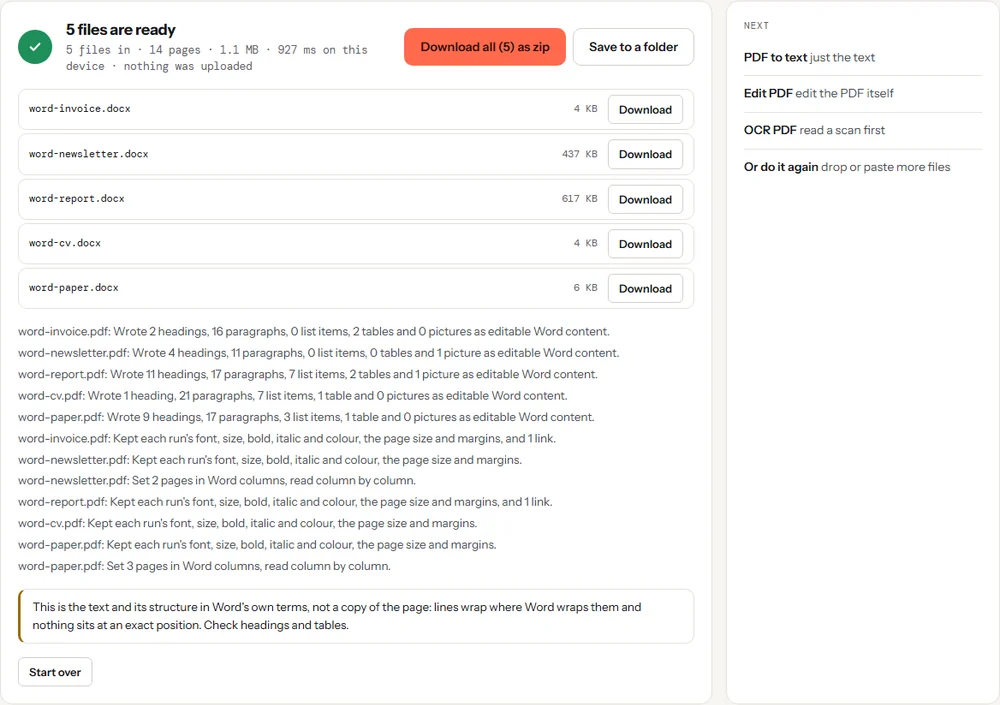
Drop a folder of PDFs, or select them all, on PDF to Word; click Convert to Word; each becomes its own .docx with the PDF’s name, and Download all gives them as 1 zip (Save to a folder writes them straight to disk in Chrome and Edge). Files are converted one after another on your device, about 15 milliseconds a page, nothing uploaded, no count limit. Before you trust the batch, open 3 files: the biggest, the oldest and a scan.
Try it here, nothing is uploaded
How batch mode works
- Drag a folder onto the page, or click Choose a folder, or select many files in the file picker. Files that are not PDFs are left out and the page says how many.
- The list shows each file with its size. Order is name order, with numbers counted as numbers (page2 before page10), which is also the order in the zip.
- Convert to Word. A progress line names the file and page being read. Each PDF becomes its own .docx; nothing is merged.
- Download all (N) as zip, or in Chrome and Edge Save to a folder, which asks for a folder once and then writes each .docx as it is ready, so a long batch does not sit in memory.
Each output keeps its PDF’s name with .docx; 2 PDFs with the same name from different folders get a number added so neither overwrites the other.
How long it takes
Measured on 26 October 2026 on a mid-range laptop, running the same code the page runs: the 1-page invoice 8 ms, the 2-page CV 8 ms, the 3-page paper 28 ms, the 2-page newsletter with a photo 60 ms, the 6-page report 88 ms. Call it 15 milliseconds a page for text and a little more for pictures, plus under a second once to load the engine in the tab. 50 letters of 2 pages: 2 seconds. 20 reports of 30 pages: 10 seconds. A 500-page manual: about 8 seconds on its own.
Memory follows the biggest file, not the count. The engine opens 1 PDF at a time and reads it page by page; the finished .docx files wait in the tab (a text-only .docx is a few KB; one with photos is the size of its photos) until you download them, or go to disk at once with Save to a folder. A PDF that is bigger than the browser can hold is listed as too big with what the device has, and the batch carries on with the next file.
The 3-file check
A batch is only as good as its worst file, and nobody opens 200 files. Open 3:
- The biggest. It has the most of everything: tables, pictures, columns. Scroll it in Word’s navigation pane; the headings should be there and in order.
- The oldest. Older PDFs come from older generators: fonts named F1 and TT4, text drawn as outlines, a scan with no OCR. Select a paragraph and look at the font box; search for a word you can see.
- A scan, if there is one. It should have been through OCR first. If it came out as pictures, the result panel said so for that file.
Then read the report lines. Each file has one: how many headings, paragraphs, lists, tables and pictures it wrote, and a warning if a file had no text on some pages. A file with “0 headings, 1 paragraph” among files with 20 headings is the one to open next.
Scans in the batch
A scanned PDF has no text, and the converter says so per file: “has no text on any page: probably scanned, so those pages come out as pictures. Run OCR PDF first.” Do that for the whole folder: OCR PDF takes a folder too, writes a -searchable.pdf for each, and then those convert like any other file. After a scan becomes Word lists what to check in the result. A folder that mixes scans and born-digital PDFs is fine: OCR skips pages that already have text.
The honest part
The batch runs the same converter on every file, with the same 2 options for all (pictures on, running lines left out). A file that needed the running lines kept, or that is a 2-column newsletter among letters, gets the same treatment as the rest; convert that one on its own afterwards. The per-file report lines are the only record of what happened, so read them before you close the tab: the zip has no log in it. And the .docx files are made from the PDF’s text layer, so a batch of scans that skipped OCR is a batch of pictures, which the warnings tell you but cannot prevent.
Questions
How many PDFs can I convert at once?
There is no count limit. Files are converted one after another on your device, so a folder of 200 takes longer than 20 but needs no more memory: only 1 file is open in the engine at a time.
How long does it take?
About 15 milliseconds a page on a mid-range laptop once the engine is loaded (the 6-page report took 88 ms, the 3-page paper 28 ms), plus under a second once to load the engine. 50 files of 10 pages: around 10 seconds.
How do I get the files out?
Download all as zip gives 1 zip with every .docx. In Chrome and Edge, Save to a folder writes them straight into a folder you pick, one by one, as each is ready.
What about scans in the batch?
They come out as pictures with a warning naming the file. Run OCR PDF on the batch first (it takes a folder too), then convert the searchable files.
The tools for this job
Keep reading
- How to convert a PDF to Word, and what to expect when you open the resultHow to convert a PDF to Word in your browser in 3 steps, free, nothing uploaded, and what comes across: tested on an invoice, a report, a CV and a paper.
- Convert many PDFs to text at once, and catch the scans that come out emptyConvert multiple PDFs to text free in your browser: a whole folder in, 1 .txt per PDF out, and how to spot the scanned files that come out empty.
- Batch process PDF files: run 1 tool over a whole folder at onceRun a PDF tool over a whole folder at once: rotate, compress, stamp or convert 40 files in 1 go.
- After a scan becomes Word: the 12 OCR mistakes to check, with a Find for eachOCR reads a scan well and still gets 12 things wrong: l and 1, O and 0, rn and m, dropped accents, joined words.
- Convert a PDF to Word offline: no upload, and you can prove itConvert a PDF to Word free with nothing uploaded: the converter runs in your browser and keeps working with Wi-Fi off.
- Search a whole folder of scanned paperwork, by making every file searchableBatch OCR a folder of scanned paperwork so Windows and Mac search can find words inside.
- PDF to Word, Excel and text for free: what converts, what breaks, and how to pickConvert PDF to Word, Excel, plain text, Markdown or CSV free in your browser.