How to convert a PDF to Word, and what to expect when you open the result
By the getPDF team · Published 26 October 2026
The short answer
Drop the PDF on getpdfs.app/pdf-to-word, click Convert to Word, and download the .docx. It is free, runs in your browser, and nothing is uploaded. Headings, paragraphs, lists, tables, fonts, links, pictures and columns come across as Word’s own features; lines wrap where Word wraps them, so page breaks can move, and a scan needs OCR first.
Try it here, nothing is uploaded
The 3 steps
- Drop the PDF on the page, or click to pick it. Several files at once are fine; each becomes its own .docx.
- Check the 2 options. Pictures is on. Running lines is on too: the header, footer and page number that repeat on every page are left out, so a 48-page report does not come with 48 copies of its title. Turn it off if you need that text once.
- Click Convert to Word, then Download file. Open it in Word, Google Docs, Pages or LibreOffice.
The result panel lists what it did: how many headings, paragraphs, list items, tables and pictures it wrote, whether it set pages in columns, and how many links it kept. Read that line before you open the file: if it says 0 tables and you expected 3, you know what to check first.
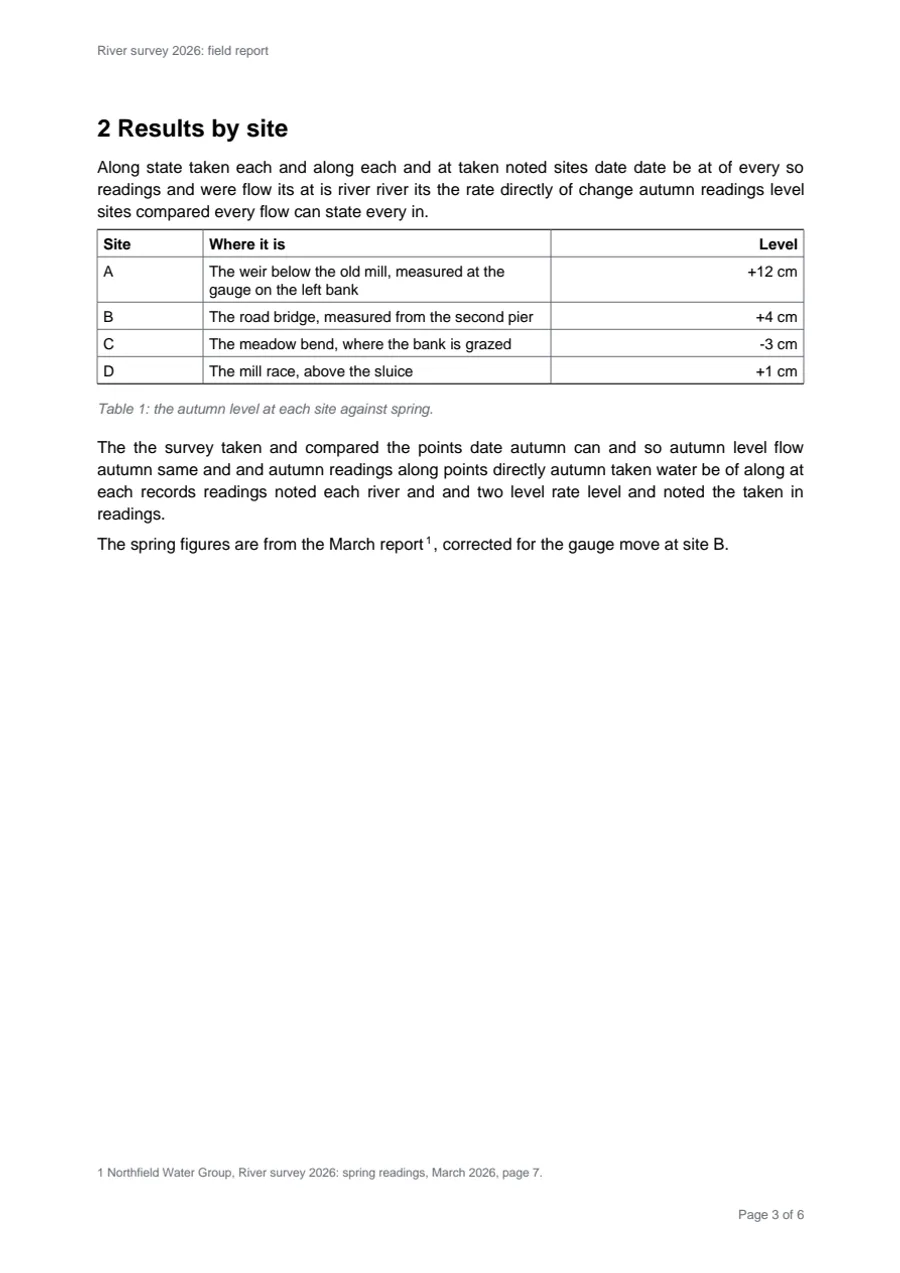
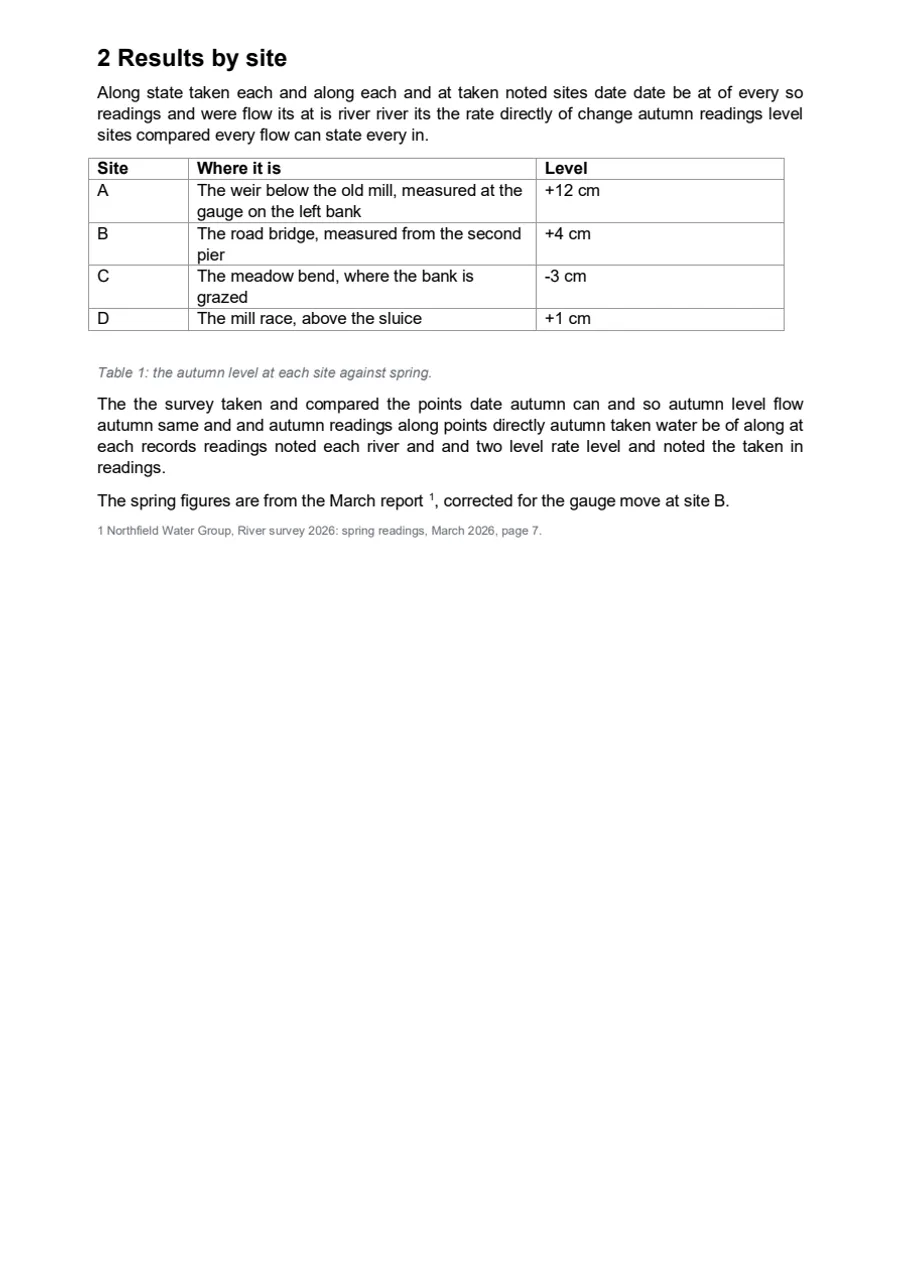
We ran the 6-page test report (a title page, 2 heading levels, bullets, numbered clauses, 2 tables, a figure, a footnote and a running header) through it on 26 October 2026. It took 88 milliseconds on a mid-range laptop and wrote 11 headings, 17 paragraphs, 7 list items, 2 tables, 1 picture and 1 link. Word opened the file as 6 pages with 2 tables, 1 picture and 0 text boxes.
What comes across
The converter reads every line of the PDF with its font, size, weight, slant, colour and position, and rebuilds the document with Word’s own features rather than pinning text to the page. On the 5 test documents (an invoice, a 2-column newsletter, the report, a CV and a 2-column paper), this is what came through:
| In the PDF | In the Word file |
|---|---|
| Larger text, or a bold line starting with a section number | A heading in Heading 1, 2 or 3 style, so the navigation pane and a table of contents work |
| Lines close together | 1 paragraph, with the hyphen at a line end removed and the word joined |
| Left, centred, right or justified text | The same alignment |
| Font, size, bold, italic, colour | The same, run by run; Helvetica becomes Arial, Times becomes Times New Roman |
| A bullet before a line | A Word bullet list item |
| 1., a), 4.2.1 before a line | A list item with the number as printed, so references to clause 4.2.1 still point at it |
| Rows of aligned cells, with or without rules | A Word table with the columns at their widths, numbers on the right, a wrapped cell as 1 cell |
| A page in 2 or 3 columns | Read column by column, and set in Word columns |
| A link | A link that opens |
| A photo | The same JPEG bytes, in place; other pictures as PNG |
| A raised footnote mark | A superscript |
| The page size and the margins | The same |
| A header, footer or page number on every page | Left out, so it does not land in the text 48 times |
What moves, and what to check
Line and page breaks. Word wraps the text itself, with its own spacing. The 2-page newsletter opened as 3 pages in Word and the 3-page paper as 4. The words are the same; the breaks are Word’s. If you must keep the page numbering of the PDF, keep the PDF.
Footnotes. The mark stays raised, but the note itself is a small paragraph at the end of its page’s text, because a PDF has no footnote object. Thesis or paper PDF to Word shows how to turn it into a real Word footnote in 3 steps.
Merged cells. A table with a header cell spanning 2 columns comes out with those 2 columns split. Tables broke in Word has the fix.
Pictures drawn as lines. A chart made of lines and text is not a picture; it comes out as its text. Take it as a picture with PDF to JPG if you need the chart.
The result is a guess. A PDF has no paragraphs, headings or tables inside; every converter works them out from positions and sizes. Why a PDF does not turn neatly into Word explains the rules, so you can predict what a given file will do.
5 kinds of document, and the first thing to check in each
| Document | What to check first |
|---|---|
| An invoice or a form letter | The label and value block (date, number, reference) comes as a small table; the address lines stay 1 line each. Check the totals, which sit as right-aligned lines under the items table. |
| A report or manual | Open the navigation pane (View, Navigation Pane): every heading should be there. Check each table against the PDF once. |
| A contract | The clause numbers are kept as printed. Check that a bold clause title became a heading and that nothing got numbered 1, 2, 3 on its own. |
| A CV | The dates sit on the right of their lines, as in the PDF. The skills list comes as a 2-column table if it was aligned. |
| A newsletter or paper | The page is set in Word columns; read the first paragraph of each column to confirm the order. |
A scanned PDF has no text to convert
If selecting a sentence in your viewer selects nothing, or a whole-page box, the file is a scan: a picture of a page. Convert it and every page comes out as that picture. Run OCR PDF first; it reads the text on your device and writes it under the picture. Convert that file and you get the text, and the scanned pages themselves are left out, since showing both would double every page. Scanned PDF to Word walks through it with the lease scan.
The rest of the set
Each of these takes 1 thing that goes wrong, or 1 kind of document, and works it through on the same test files:
- Why it changes: why a PDF does not turn neatly into Word, the Word file looks different, full of text boxes
- Fixing a result: tables, 2 columns, fonts, every line its own paragraph, headers and page numbers in the text, pictures missing or blurry, bullets and numbering
- Kinds of document: a contract, a thesis or paper, a CV for a recruiter, a form into a template, a scan and the checklist after it, many files at once
- Word’s own ways: open a PDF in Word, edit a PDF in Word, insert a PDF into a Word document, on a Mac, on a phone, offline, into Google Docs
- The other direction: save a Word document as a PDF, make a fillable PDF from Word, search a PDF for a word
The honest part: when not to convert
To change a date, a name or a sentence, do not convert. The Word detour rebuilds the layout on the way out and again on the way back. The editor changes the text where it is, in its font, and nothing else moves; it takes a minute. Convert to Word to edit, or edit in place compares the 2 on a real job.
For a poster, a designed brochure or a form with boxes everywhere, the position of each word is the design. Flowing text gives exactly that up, in our converter and in every other that stays editable. Take the text and redesign it in Word, or keep the PDF.
For a file that must look identical in Word, no editable conversion exists. Converters that show a pixel-perfect page do it with text boxes pinned to coordinates, or with a picture of the page. The Word file is full of text boxes explains that trade.
Everything here runs on your device. The file is read by the same engine Chrome uses to show PDFs, inside your browser tab, and the .docx is written there. The privacy page says what the site sends (a page view and a count of tool runs, never a file), and you can check it yourself: turn Wi-Fi off and convert again.
Questions
Do I need Word installed to convert a PDF to Word?
No. The conversion runs in your browser and gives you a .docx file. You need Word, Google Docs, Pages or LibreOffice only to open the result, and all 4 open it.
Is the Word file an exact copy of the PDF?
No, and no converter's is. You get the document in Word's own terms: paragraphs that flow, headings in heading styles, real tables, the fonts and sizes as the PDF set them. Lines wrap where Word wraps them, so a page can end in a different place.
How long does it take?
On a mid-range laptop the 6-page test report takes 88 milliseconds and the 3-page paper 28. A 100-page report takes a few seconds. The first conversion also fetches the 4.6 MB engine once, which your browser then keeps.
Does it work with a scanned PDF?
Not on its own: a scan is a picture of a page, with no text to take. Run OCR PDF first, which reads the text on your device, then convert the result. The scanned pages themselves are then left out of the Word file, since their text is in it.
Is my file uploaded?
No. The PDF is read and the .docx is written inside your browser tab. You can check it: use the tool once, turn Wi-Fi off, and convert another file.
The tools for this job
Keep reading
- Why a PDF does not turn neatly into Word, and what survives anywayA PDF stores letters at positions; Word stores paragraphs that flow.
- The converted Word file looks different: what changed, and the 5-minute fixesYour PDF to Word file looks different because page layout does not survive conversion.
- Tables broke in Word: what survives conversion and how to rebuild the restA PDF has no table objects, only text at positions.
- Two-column PDFs into Word without the scrambleA 2-column newsletter or paper often converts with the columns woven line by line.
- The font changed after PDF to Word: why, and how to match it in a minuteAfter PDF to Word the font looks different for 1 of 3 reasons: the name was lost, the font is not installed, or it was mapped.
- Scanned PDF to Word: OCR first, then convert, and what survivesTurn a scanned PDF into an editable Word file: free OCR on your device, then convert.
- Convert a PDF to Word you can edit, not a page of stuck text boxesConvert a PDF to a Word file you can really edit: flowing paragraphs, Word headings, lists and tables, not stacked text boxes.
- Open a PDF in Word: what Word does to it, and when not toWord opens PDFs itself: File, Open, then it converts.
- PDF to Word, Excel and text for free: what converts, what breaks, and how to pickConvert PDF to Word, Excel, plain text, Markdown or CSV free in your browser.