The font changed after PDF to Word: why, and how to match it in a minute
By the getPDF team · Published 26 October 2026
The short answer
The font looks different after conversion for 1 of 3 reasons. The PDF hid the font’s name, so the converter had to pick a default; the name came through but the font is not installed on your machine, so Word substituted; or the name came through as its Windows twin (Helvetica as Arial). Check which with Inspect on the PDF and Font Substitution in Word, then fix the whole file in a minute by changing the Normal style.
Try it here, nothing is uploaded
Which of the 3 is yours
1. The PDF hid the name. Open the PDF in Inspect and read the fonts list. Names like F1, TT4, Font0 or C2_1 are placeholders a generator wrote; the real name is gone. Our converter then sets the text in a default for the kind of face it detected from the font’s own flags: Calibri for a sans, Cambria for a serif, Consolas for a monospace. Nothing on your machine can recover the name, because the PDF does not have it.
2. The font is not installed. Inspect shows a real name, the Word file names it too (select some text and look at the font box), but the page is set in something else. Word substituted. File, Options, Advanced, scroll to Show document content, Font Substitution: the dialog lists each missing font and the one Word used. Install the font if you have it, or pick a better stand-in there.
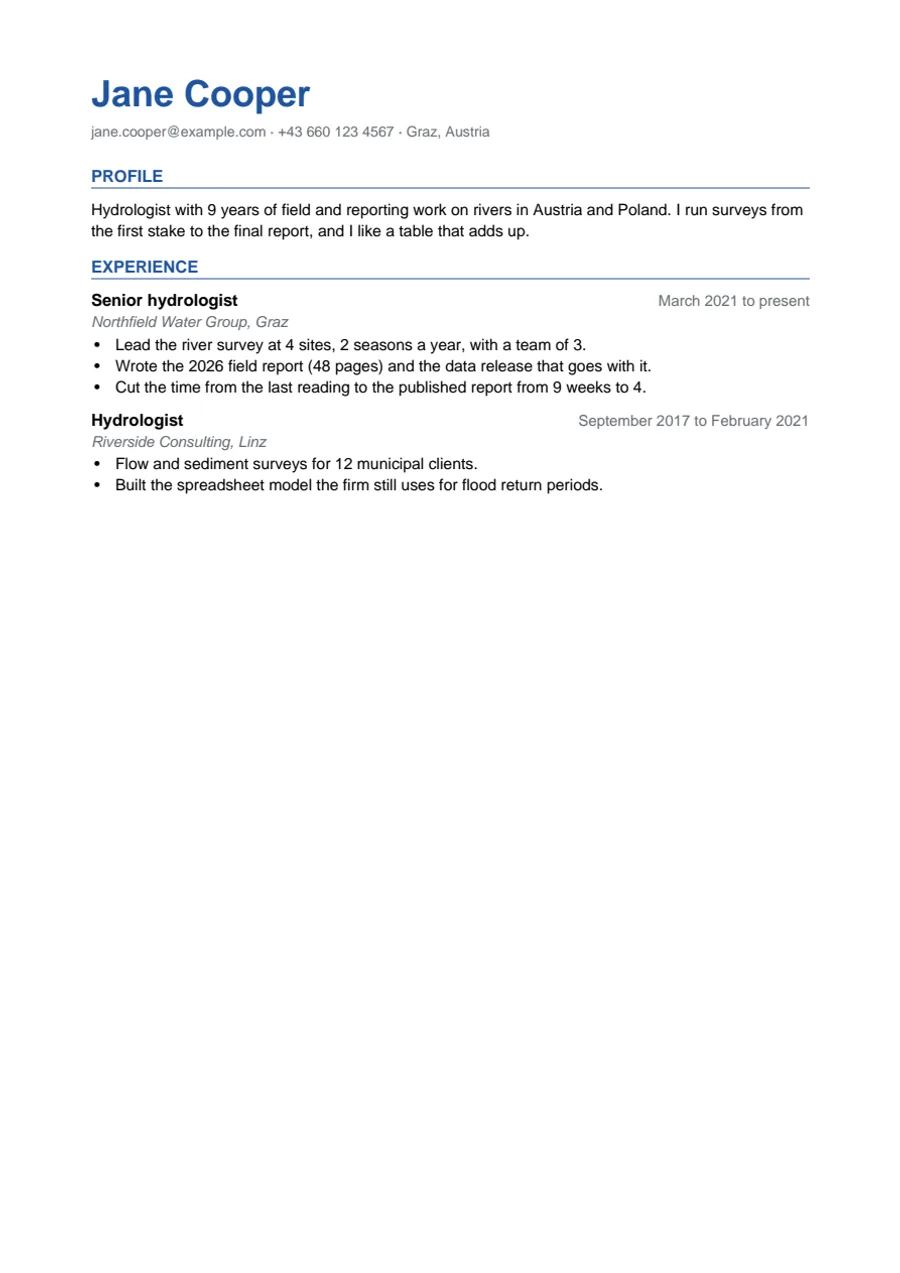
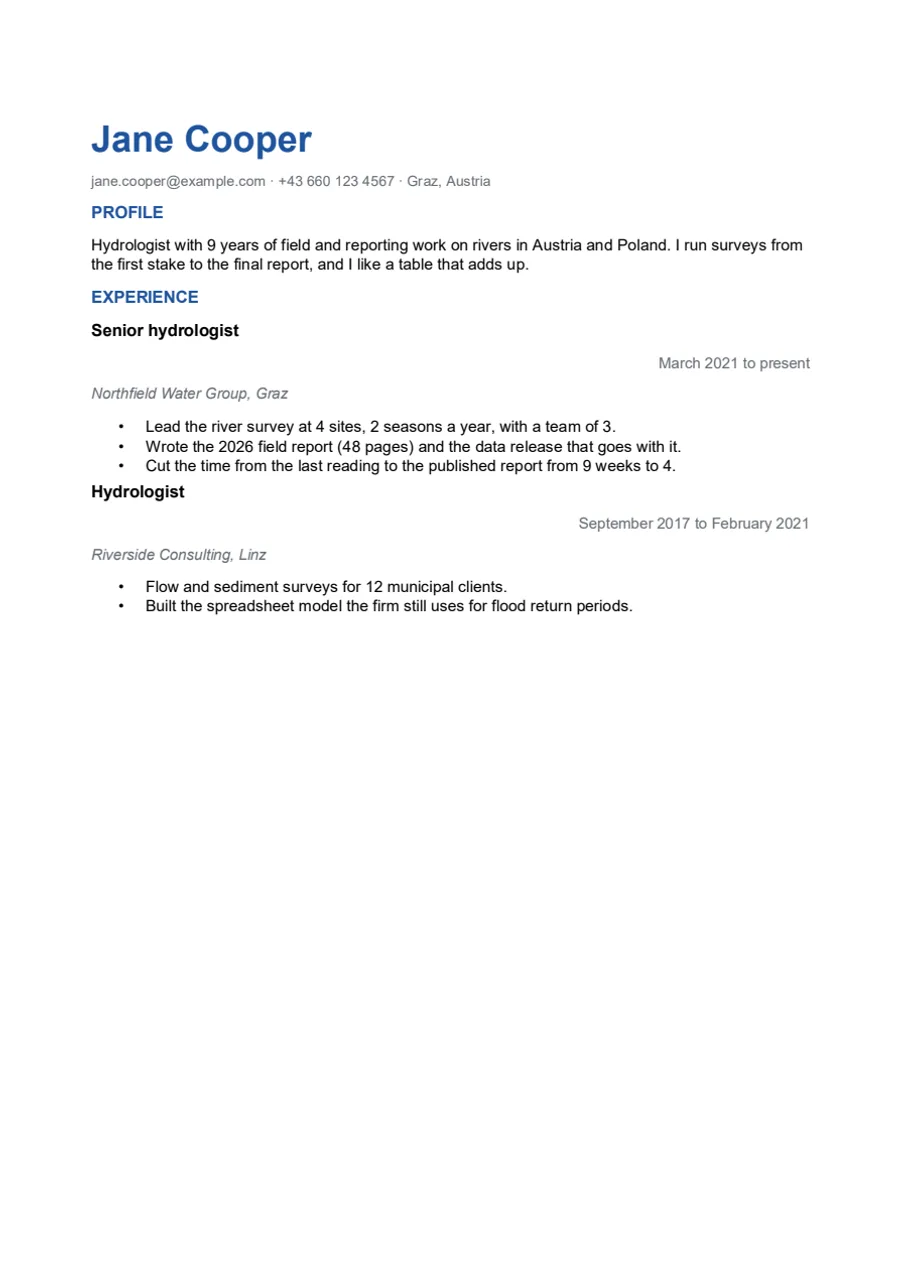
3. The name came through as its Windows twin. A PDF’s standard fonts are Helvetica, Times and Courier. Word’s are Arial, Times New Roman and Courier New, which are built to the same widths. The converter maps them, so the text sets at the same measure. The test CV, set in Helvetica, opens in Word in Arial; the test paper, in Times, in Times New Roman.
| In the PDF (as Inspect shows it) | In the Word file | What you see |
|---|---|---|
| ABCDEF+Arial-BoldMT | Arial, bold | Arial, on any machine |
| Helvetica, Helvetica-Bold | Arial, bold where it was bold | Arial |
| Times-Roman, TimesNewRomanPS-ItalicMT | Times New Roman, italic where it was | Times New Roman |
| Courier, CourierNew | Courier New | Courier New |
| Georgia, Verdana, Garamond, Calibri, Cambria | The same name | The font if installed, else Word’s substitute |
| MinionPro-Regular, a bought font | Minion Pro | The substitute, unless you own and install it |
| F1, TT4, Font0, C2_1 | Calibri, Cambria or Consolas by the face’s kind | That default |
What the converter keeps, run by run
Every run of text in the PDF carries its font name, size, weight, slant and colour, and the converter writes each one that differs from the document’s body into the Word run. The body font and size become the document defaults (the Normal style), so most text carries nothing extra and Modify Normal changes it all. Headings carry their size through the Heading 1 to 3 styles, measured from the page, so Modify Heading 1 changes every heading at once.
What is not kept: letter spacing, stretched or condensed text, small caps drawn as capitals, outlines and shadows. A font effect of that kind is drawn in the PDF, not named, and comes out as plain text.
The 1-minute fixes
The whole document. Home tab, right-click Normal in the Styles gallery, Modify, choose the font and size, OK. Then the same for Heading 1, Heading 2 and Heading 3 if they are not to your taste.
One font everywhere it appears. If a few runs name a font you do not have, Replace handles it: Ctrl+H, click More, put the cursor in Find what, Format, Font, pick the font to find; then in Replace with, Format, Font, the font you want; Replace All.
A size that moved. Sizes come across as they were, so a 10.5-point body stays 10.5. If the PDF used an odd size, set it in Normal once.
Installing a font. Right-click the font file, Install. Word picks it up on the next start. Keep to fonts you are licensed to use on that machine.
The honest part
No converter can give you a font the PDF only hints at, and none can install one for you. A PDF carries the shapes of the letters the document used, usually a subset, with no licence and no name a system would accept. Word can embed fonts in a .docx when you save (File, Options, Save, Embed fonts in the file), but only fonts installed on the machine that saves. If the file must look the same on every machine, that is what PDF is for: convert back to PDF when you are done editing, or change the text in the PDF itself and skip Word. Fonts changed when editing a PDF covers that side.
Questions
Does the converter keep the PDF's fonts?
It keeps the font names, run by run, when the PDF gives them: Arial stays Arial, Georgia stays Georgia. The standard PDF fonts get their Windows names (Helvetica becomes Arial, Times becomes Times New Roman, Courier becomes Courier New). A PDF that calls its fonts F1 or TT4 gives no name, and the converter uses a sans, serif or monospace default.
Why does Word show a different font than the one named?
The font is not installed on your machine, so Word substitutes silently. Open File, Options, Advanced, Font Substitution to see which font replaced which. Install the font or pick the substitute you want there.
How do I change the font for the whole document?
Right-click Normal in the Styles gallery, Modify, pick the font and size, OK. Every paragraph that does not set its own font follows. Headings follow Heading 1 to 3 the same way.
Can the converter embed the font in the Word file?
No. A PDF carries only the letters the document uses, often as a subset with the licence stripped, which is not a font Word can install. Word can embed fonts when you save, but only ones installed on your machine.
The tools for this job
Keep reading
- How to convert a PDF to Word, and what to expect when you open the resultHow to convert a PDF to Word in your browser in 3 steps, free, nothing uploaded, and what comes across: tested on an invoice, a report, a CV and a paper.
- PDF fonts changed on another computer: embedding, explainedPDF fonts change on another computer when they are not embedded in the file.
- Why a PDF does not turn neatly into Word, and what survives anywayA PDF stores letters at positions; Word stores paragraphs that flow.
- The converted Word file looks different: what changed, and the 5-minute fixesYour PDF to Word file looks different because page layout does not survive conversion.
- Convert a PDF to Word on a Mac, free, without installing anythingConvert a PDF to Word on a Mac in Safari, free, nothing installed and nothing uploaded.
- Change the font, size or colour of text in a PDFChange the font, size or colour of existing PDF text free: select the line, restyle it, save, on your device.
- A recruiter wants your resume in Word: convert the PDF without wrecking itA recruiter wants your CV in Word and you have the PDF.
- PDF to Word, Excel and text for free: what converts, what breaks, and how to pickConvert PDF to Word, Excel, plain text, Markdown or CSV free in your browser.