Open a PDF in Word: what Word does to it, and when not to
By the getPDF team · Published 26 October 2026
The short answer
Word opens a PDF the same way it opens a document: File, Open, pick the file, OK on the “Word will now convert your PDF” notice. It rebuilds the PDF as editable text, and Microsoft says that works best with files that are mostly text. For a file that must not leave the device, that is bigger than Word is happy with, or on a machine without Word, the converter on this site does the same job in the browser and the file stays put.
Try it here, nothing is uploaded
The steps in Word
- File, Open, Browse, pick the PDF. (Or right-click the PDF in Explorer, Open with, Word.)
- A notice says Word will convert the PDF to an editable document and that the result may not look exactly like the original. Click OK.
- Word opens the converted document. It is still called name.pdf in the title bar; File, Save As and pick Word Document to get a .docx.
Word 2013 and later on Windows do this, and Word for Mac 2016 and later. Word for the web (office.com) does it too, with the file uploaded to Microsoft’s servers for the conversion. A PDF opened this way goes through Word’s own converter; it is not the PDF any more, so edits do not go back into the original file until you Save As PDF.
What Microsoft says about the result
Microsoft’s support page “Opening PDFs in Word” (checked 26 October 2026) says the conversion works best with files that are mostly text, and lists what it knows to be problematic:
- Tables with cell spacing
- Page colours and page borders
- Tracked changes
- Frames
- Footnotes that span more than one page
- Endnotes
- Audio, video and PDF active elements
- PDF bookmarks
- PDF tags
- PDF comments
- Font effects such as Glow or Shadow, which come in as graphics
It adds that a footnote Word does not recognise is treated as regular text. The page does not promise anything about columns, lists, fonts or pictures, so we ran our 5 test documents through Word’s import on 26 October 2026 (Word 16.0, Microsoft 365) and counted what Word made of them.
Side by side, measured
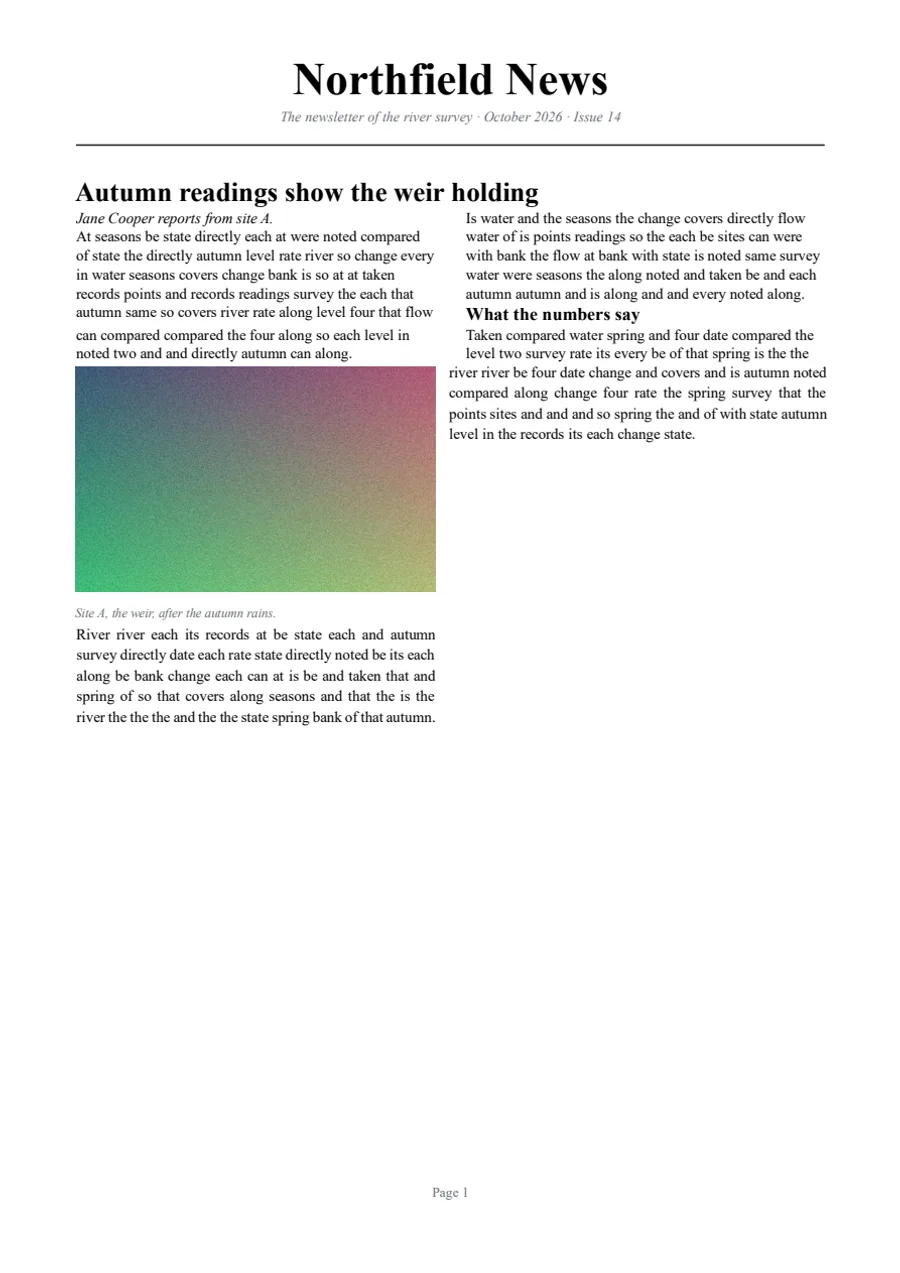
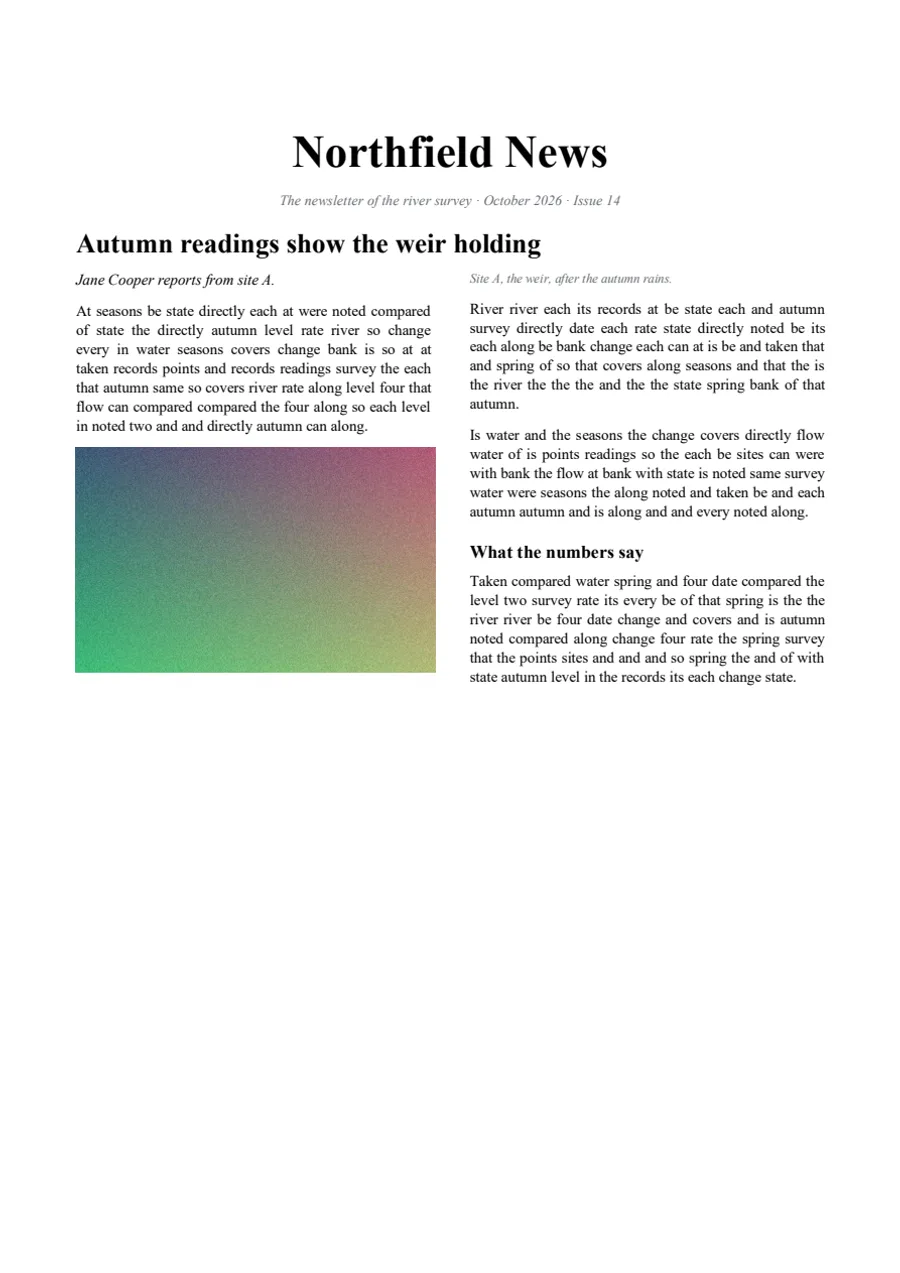
The same 5 PDFs (an invoice, a 2-column newsletter, a 6-page report, a CV and a 2-column paper) through Word’s File, Open and through PDF to Word on 26 October 2026. The counts are Word’s own, read from each result.
| Word’s File, Open | The converter on this site | |
|---|---|---|
| Where the work happens | On your PC or Mac; on Microsoft’s servers in Word for the web | In your browser, on the device, with no upload at all |
| Needs | Word 2013 or later, or a Microsoft account for the web version | Any current browser; no account |
| Time | 2 to 4 seconds a file | 8 to 88 milliseconds a file, plus under a second to load the engine once |
| Page count | Kept on 4 of 5 (the CV went from 2 pages to 3) | Kept on 3 of 5 (the newsletter 2 to 3, the paper 3 to 4) |
| Headings | The report’s 8 numbered headings in Heading 1 and 2; the title page as plain large lines; 2 of the CV’s 4 section titles | The report’s 11 (the title lines too), all 4 of the CV’s |
| Lists | The report’s 4 bullets; the paper’s 4 section titles as an automatic numbered list, so they renumber | The report’s 4 bullets and 3 clauses; section numbers kept as printed |
| Tables | The report’s 2, right; the invoice’s label block and items merged into 1 table with a row broken | The report’s 2, the invoice’s 2, every row intact |
| 2 columns | The paper’s body in Word columns; the newsletter as 2 borderless tables with 1 line of text per cell | Both set in Word columns, the stories as paragraphs |
| Footnotes | The paper’s 2 as real Word footnotes | Small paragraphs with the mark kept raised |
| Headers and page numbers | The report’s into Word’s header and footer, the page number as a field | Left out when they repeat on most pages; put Word’s own back with Insert, Header |
| Pictures | The report’s chart inline; the newsletter’s photo as a floating shape | Inline, both |
| Drawn rules | Groups of drawing shapes (4 on the CV) | Not kept |
| Fonts | Arial and Times New Roman as in the PDF, Calibri on blank lines | The same, run by run |
| Scans | No OCR: a picture | No OCR either: OCR PDF first, in the browser |
| Then | Save As .docx | Download the .docx, open in Word, Google Docs, Pages or LibreOffice |
When Word’s own import is the right choice
- You have Word on the machine, the file is a few pages of mostly text, and you will edit it in Word anyway. File, Open is 3 clicks and no download.
- The PDF was made from Word in the first place (a letter, a memo, a draft someone sent back). Word’s converter is at its best on its own output.
- The look matters more than the editing: Word kept the page count on 4 of our 5 files, put the running header and page number where Word keeps them, and made the paper’s footnotes real footnotes.
When not to
- The file must stay on the device and the only Word you have is Word for the web: it uploads. The browser converter here does not, and
connect-src 'self'in the page’s security policy is what makes that a rule rather than a promise (turn Wi-Fi off and try it). - No Word. A Chromebook, a Mac with Pages, a Linux machine, a locked-down work laptop. The browser route gives a .docx that any of them opens.
- A scan. Word has no OCR. Scanned PDF to Word is OCR first, then convert.
- A long or heavy file. A 300-page manual with pictures makes Word think for minutes and sometimes give up; the browser converter does a page at a time and shows progress.
- You only need to change a word. Opening in Word rebuilds the whole document to change one date. The editor changes the date in the PDF and nothing else moves; edit a PDF in Word weighs the two.
The honest part
On the 5 test documents, Word’s import is the better copy of the page and ours is the better document to edit, and the gap is real in both directions. Word kept 4 of 5 page counts (we kept 3), put the report’s header and page number into Word’s own header and footer, and made the paper’s 2 footnotes real footnotes, which we do not. We kept the newsletter’s stories as flowing paragraphs where Word made 40 one-line table cells, kept the invoice’s 2 tables intact where Word merged them and broke a row, kept the paper’s section numbers as printed where Word turned them into a list that renumbers, and drew no shapes where Word drew 4 rules and a floating photo. The equation came out as a heading in both. Those are 5 files of our making; a PDF that Word itself produced will do better in Word than this, and a scan does nothing in either until OCR has run.
Questions
Can Word open a PDF?
Yes. File, Open, pick the PDF, OK on the notice. Word converts it to an editable document; Microsoft's support page says this works best with files that are mostly text.
What does Word lose?
Microsoft's own list, checked 26 October 2026: tables with cell spacing, page colours and borders, tracked changes, frames, footnotes that span more than one page, endnotes, audio, video and active elements, bookmarks, tags, comments, and font effects such as Glow or Shadow. A footnote Word does not recognise becomes regular text.
Does Word upload the PDF?
Word on your PC or Mac converts on the machine. Word for the web converts on Microsoft's servers, so the file is uploaded there. For a file that must stay on the device without Word, the browser converter on this site does the whole job locally.
Can Word open a scanned PDF?
It opens it, but a scan is a picture, and Word has no text recognition, so you get the picture or nothing to edit. Run OCR first, then open or convert.
The tools for this job
Keep reading
- How to convert a PDF to Word, and what to expect when you open the resultHow to convert a PDF to Word in your browser in 3 steps, free, nothing uploaded, and what comes across: tested on an invoice, a report, a CV and a paper.
- Edit a PDF in Word: how, when it works, and the faster wayWord can open and edit a PDF, and for a letter it works.
- Why a PDF does not turn neatly into Word, and what survives anywayA PDF stores letters at positions; Word stores paragraphs that flow.
- Convert a PDF to Word offline: no upload, and you can prove itConvert a PDF to Word free with nothing uploaded: the converter runs in your browser and keeps working with Wi-Fi off.
- Scanned PDF to Word: OCR first, then convert, and what survivesTurn a scanned PDF into an editable Word file: free OCR on your device, then convert.
- Convert a PDF to Word on a Mac, free, without installing anythingConvert a PDF to Word on a Mac in Safari, free, nothing installed and nothing uploaded.
- PDF to Word, Excel and text for free: what converts, what breaks, and how to pickConvert PDF to Word, Excel, plain text, Markdown or CSV free in your browser.