Tables broke in Word: what survives conversion and how to rebuild the rest
By the getPDF team · Published 26 October 2026
The short answer
A PDF has no table objects, only text sitting at positions and maybe a few lines. A converter finds a table by looking for rows of cells that line up, so it can miss one, split a column, or make 2 rows of a wrapped cell. Our converter keeps rows, columns, widths, right-aligned numbers and wrapped cells on the 2 test tables that have rules and the 2 that do not; what breaks is merged cells and tables drawn with spacing alone. Each break has a 2-minute fix in Word, and a table of numbers is better taken through PDF to Excel.
Try it here, nothing is uploaded
How a converter finds a table
The page’s text is cut into pieces wherever the gap between 2 letters is wider than 0.8 of the font size: cells. Pieces at the same height are a row. Then:
- 3 or more cells in 3 or more rows that sit close together are a table. With vertical rules through them, 2 cells a row are enough.
- 2-cell rows (a label and a value, a price list) are a table after 4 of them, when the second cell starts or ends at the same x each time and the first cell is short.
- The columns come from the table’s own vertical rules when it has them, otherwise from the strips of white that run down through the rows.
- A short line close under a row, starting where one of the columns starts and staying inside it, is the rest of a wrapped cell and joins the row above. In a table with a rule between every row, the rules decide instead.
- A row that does not line up with the rows above it (an address block above a table) starts a run of its own, and a row set well apart (a totals block under an invoice) stays out.
Each cell goes into a Word table cell, the columns at the widths they span on the page, numbers right-aligned, the first row bold.
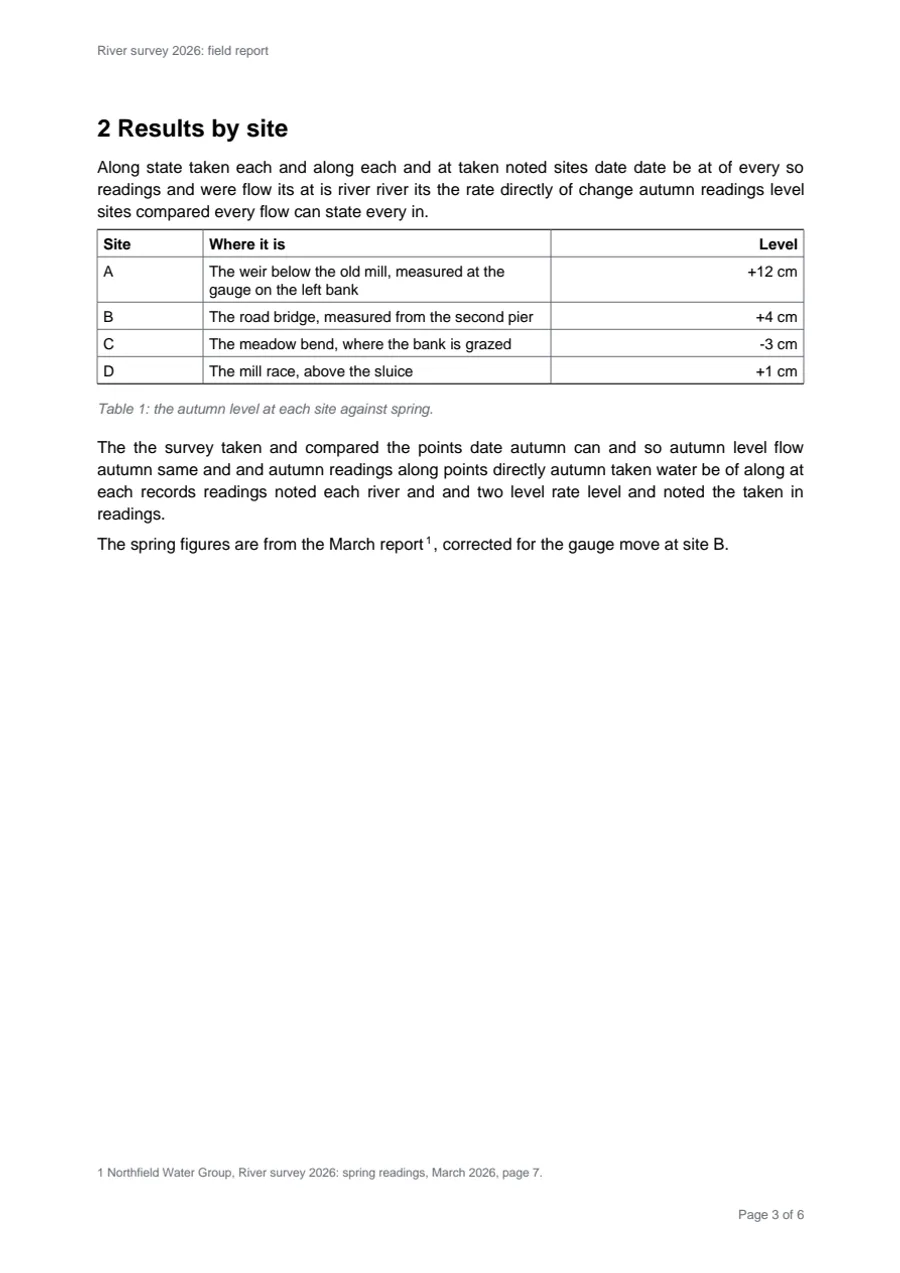
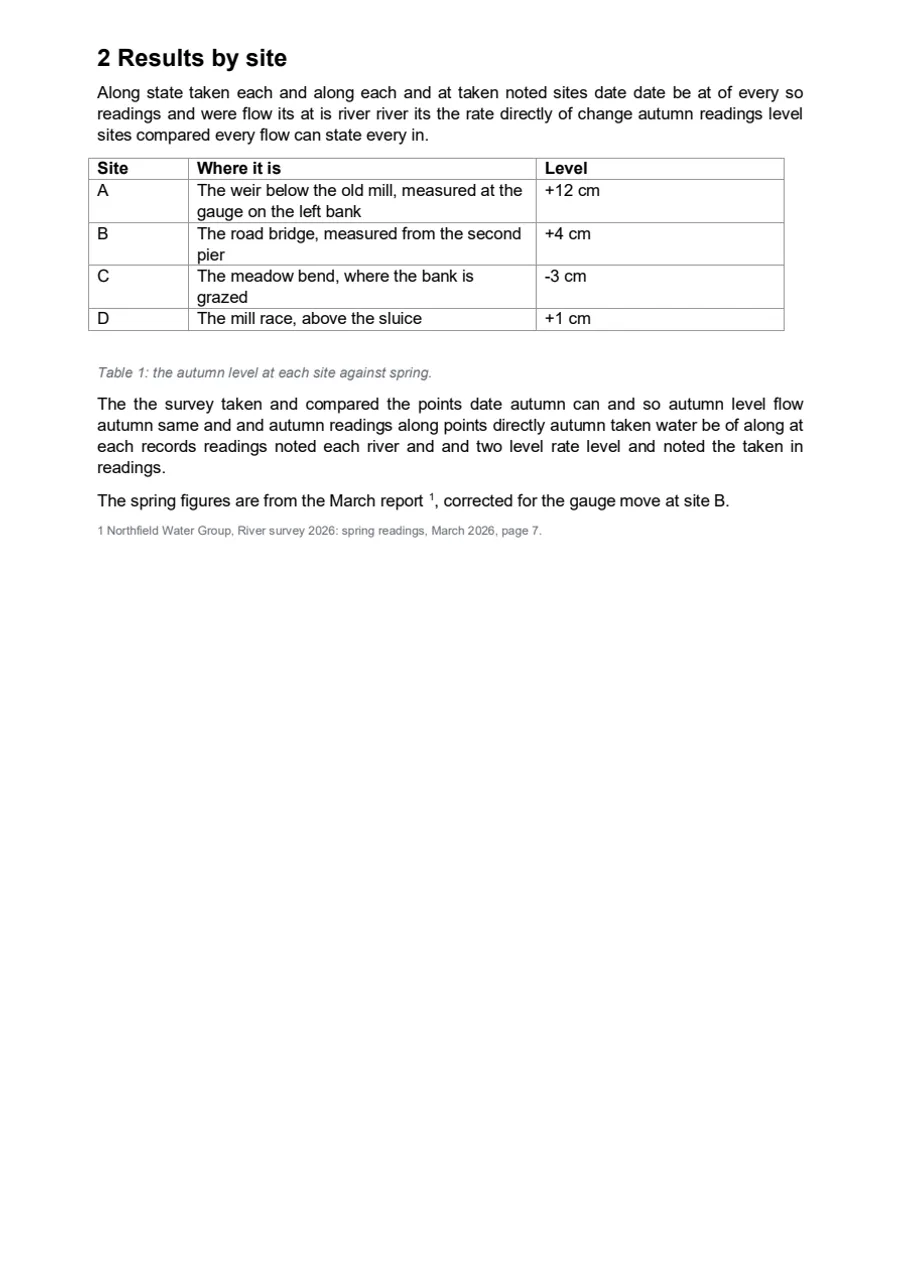
The 4 ways a table breaks, and the fix for each
| What you see | Why | Fix in Word |
|---|---|---|
| Loose lines where the table was | Fewer than 3 rows, cells that do not line up, or the table is a picture | Select the lines, put a tab between the cells (Replace 2 spaces with ^t), then Insert, Table, Convert Text to Table |
| 2 columns in 1 cell (Qty and Unit together) | Some cell’s text covered the gap between them in most rows, so no edge was found | Click the cell, Layout, Split Cells, 2 columns; or convert the table with PDF to Excel and paste it back |
| A wrapped cell as 2 rows | A converter that does not know wrapped cells; ours joins them when the second line starts in a column and sits close | Select the 2 cells in each column, Layout, Merge Cells; or convert again here |
| Merged cells split (a header over 2 columns comes as 2 cells, 1 empty) | A PDF has no merged cells; the converter sees 1 piece of text over 2 columns | Select the 2 header cells, Merge Cells, then centre |
A table that spans 2 pages comes as 2 tables, one per page, because the converter rebuilds each page on its own. Put the cursor between them, delete the paragraph mark and the page break, and Word joins them when the column counts match.
What we measured
On 26 October 2026, the converter of that day found every table in the 5 test documents:
| Table | Found as |
|---|---|
| The report’s ruled table (header, 4 rows, 3 columns, 3 wrapped cells, a rule between every row) | 5 by 3, the wrapped cells joined |
| The report’s table of numbers (header and 4 rows, no rules) | 5 by 4, numbers right-aligned |
| The invoice’s items (header, 4 rows, a wrapped description, a rule under the header and under the items) | 5 by 5, widths as on the page; the totals block under it stayed out, as 3 right-aligned lines |
| The invoice’s label and value block (4 rows of label, value and a Bill to column) | 4 by 3 |
| The CV’s skills (4 rows of label and value) | 4 by 2 |
| The paper’s table inside a column (header and 4 rows, rules at the top, under the header and at the bottom) | 5 by 3; the 2 rules did not merge the body rows, because fewer than 60 % of the rows have a rule between them |
When PDF to Excel is the better route
If the table holds numbers you will add up, sort or chart, convert it with PDF to Excel instead. It uses the same cell finder, writes the grid to a sheet with numbers as numbers (1,190.00 and 1.190,00 both become 1190), and a sheet is the right place to fix a column that split. Paste the finished table into Word with Paste as Picture if its look matters, or as a table if its words do. Copy a table from a PDF covers the 1-table case, and PDF to Excel: wrong columns the split-column case in detail.
The honest part
The converter cannot see a table that is not laid out as one. A table drawn with spacing alone, where the columns are not aligned row to row, comes out as lines, and that is the right thing: a wrong table costs more to fix than no table. Merged cells never survive, because the PDF has no record of them. And a table that is a picture (a scan, a screenshot pasted into the PDF) has no text at all until OCR runs on it, after which it is a table of OCR’d text with the usual OCR mistakes in its numbers; the checklist after converting a scan lists them.
Questions
Why did my table come out as plain lines?
The converter did not recognise it as a table. It looks for 3 or more rows of 3 or more cells that line up, or 2-cell rows after 4 of them. A 2-row table, a table whose cells do not align, or one that was drawn as a picture gives lines instead.
Why are 2 columns merged into 1 cell?
The gap between those 2 columns was covered by some cell's text in most rows, so no column edge was found there. Split the cell in Word, or convert with PDF to Excel, which gives you the grid to fix in a spreadsheet.
Why did a cell's second line become its own row?
Our converter joins it when the line sits close under its row and starts where a column starts; a converter that does not know wrapped cells gives a row per line. Merge the 2 rows' cells in Word, or convert again.
Do the column widths survive?
Yes, as on the page: the converter writes each column at the width its text spans, scaled only when the table is wider than the text area, and puts numbers on the right. AutoFit Contents in Word fits them to the text if you prefer.
The tools for this job
Keep reading
- How to convert a PDF to Word, and what to expect when you open the resultHow to convert a PDF to Word in your browser in 3 steps, free, nothing uploaded, and what comes across: tested on an invoice, a report, a CV and a paper.
- Copy a table from a PDF without the columns collapsingCopy a table from a PDF into Excel or Word: why paste lands it in 1 column, when splitting works, and the free 2-minute convert route, on your device.
- PDF to Excel puts text in the wrong columns: why, and the fixesPDF to Excel put it all in 1 column, or 2 columns in 1 cell? How converters find columns, the 4 layouts that defeat them, a free fix for each in your browser.
- A table across many PDF pages, into 1 clean Excel sheetTurn a table that spans many PDF pages into 1 Excel sheet: repeated headings and footers out, broken rows mended, the row count checked.
- Why a PDF does not turn neatly into Word, and what survives anywayA PDF stores letters at positions; Word stores paragraphs that flow.
- The converted Word file looks different: what changed, and the 5-minute fixesYour PDF to Word file looks different because page layout does not survive conversion.
- PDF to Word, Excel and text for free: what converts, what breaks, and how to pickConvert PDF to Word, Excel, plain text, Markdown or CSV free in your browser.